When teams look for revenue, they usually look at the pipeline. But winning teams don't just close more deals, they make sure every dollar of value they've already delivered gets collected.
The most obvious revenue is hiding in plain sight, in your own usage data.
Usage-based revenue leakage has historically been hard to catch because it doesn't show up anywhere. It’s not on the invoice, not in your CRM, not in your MRR report. That's why it can run for months before anyone notices.
Maybe your Account Manager set your customer up on a new product, and now the customer has unlimited access.
Maybe there was an API product update that wasn’t gated correctly (and now everyone’s eating for free).
Or, perhaps, it was all lost in a handover between an AE and a CSM that didn’t effectively cover the setup.
That’s why we built Revenue Assurance.
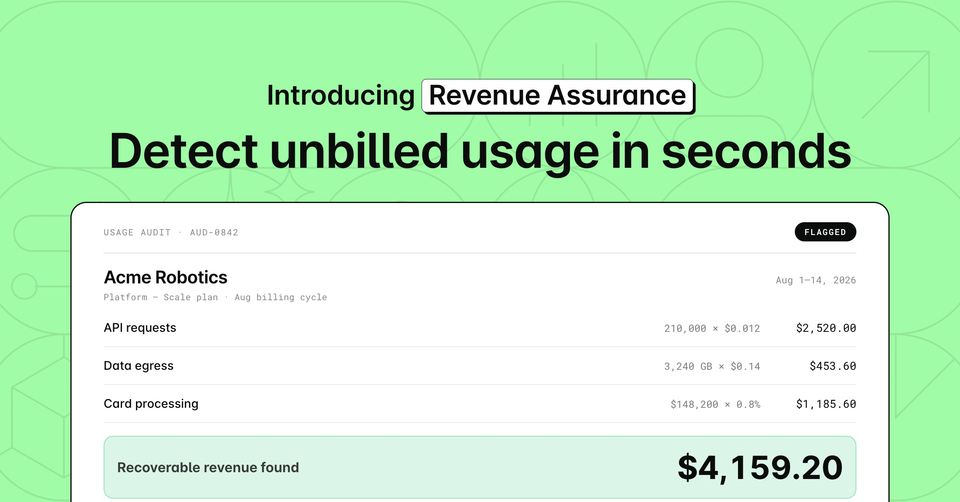
Revenue Assurance is a new workspace in Alguna that sweeps your customer base for metered usage that isn't covered by an existing subscription.
Let’s take a closer look.
What is Revenue Assurance in Alguna?
Revenue Assurance is a usage detection workspace built to prevent usage from going unnoticed.
Alguna scans your customer base and finds usage (e.g. API requests) that should have been billed but wasn't.
Today, two kinds of gap are detected:
- Missing subscription coverage: A customer metered usage on a product that none of their active subscriptions covers. This is usually a lapsed renewal, a plan that was sold but never set up correctly, or perhaps a product a power user adopted outside their contract.
- Usage without a matching account: A customer goes live without their usage linked to their account. This is usually a customer who went live before anyone set them up properly, a self-serve signup that never got connected to a CRM record, or perhaps an identifier that changed without anyone updating it.
Depending on the size of your customer base, from a single run, you’re likely to surface multiple revenue opportunities.
What Revenue Assurance does
Finding usage revenue gaps has historically fallen on engineering. Someone needs to write a script, monitor API end points, or manually do a spot check against raw log files. Next, it’s sent to a spreadsheet where someone has to piece it together and map it to the correct customer and compare it against their subscription.
That work is expensive enough that it happens quarterly at best, which means gaps live for months (in some cases, years).
In one click, Revenue Assurance does the following:
- Scans any time period, on demand. You aren't limited to a closed billing cycle. Scan last month, last quarter, or the full eighteen months since a product launched.
- Checks every customer's subscription coverage. Alguna reads each customer's active subscriptions to see what they're billed for, then flags metered usage on anything that isn't covered.
- Counts the usage you're missing. For each uncovered product, usage is totalled across the period using that product's own metrics.
- Catches usage that never reached a customer record. Events sometimes arrive under an identifier mapped to no account: a second environment, a renamed service, a new region. That usage is billed to nobody and no coverage check would ever catch it. Revenue Assurance surfaces those identifiers so you can assign them to the right customer.
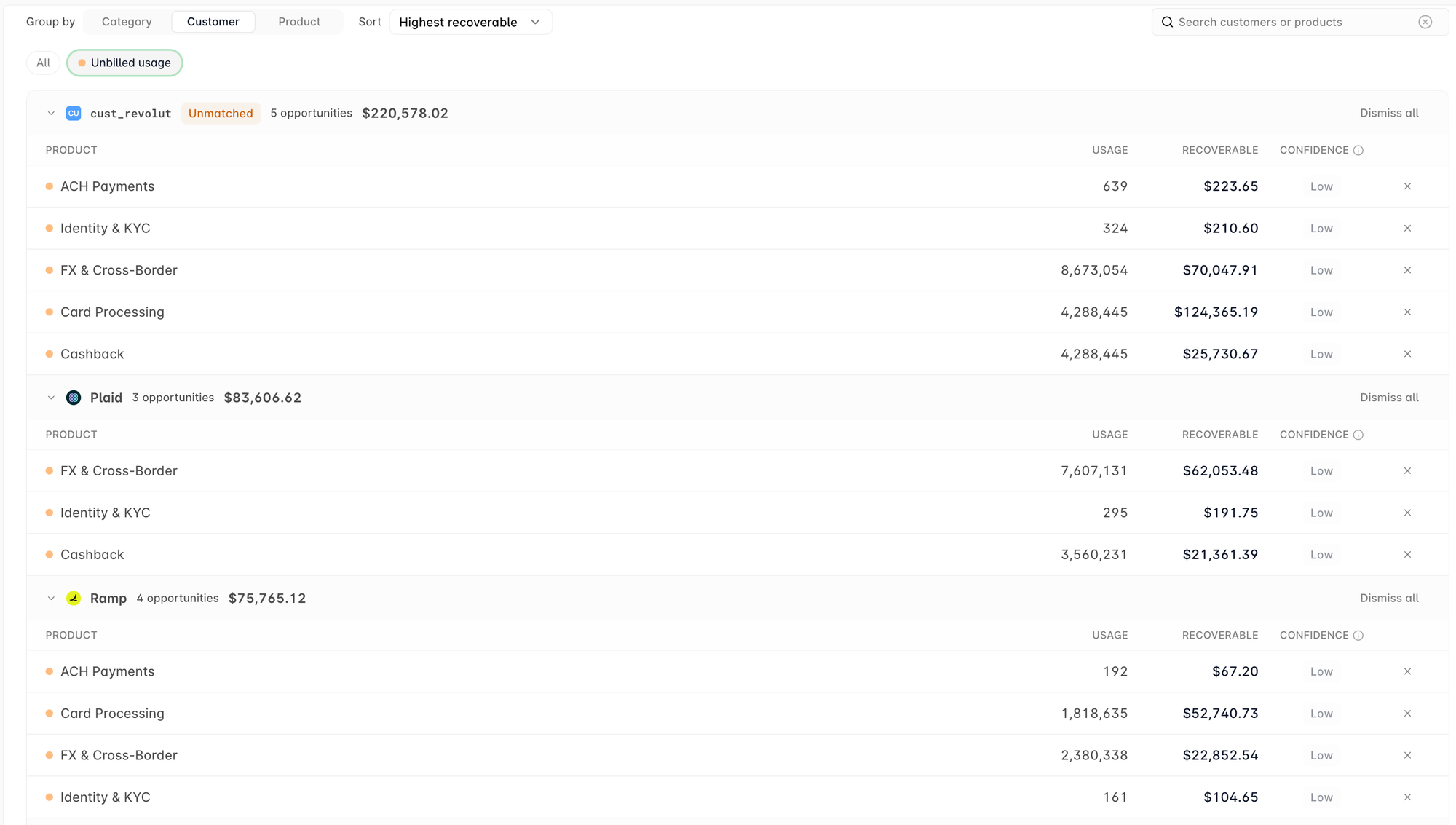
- Groups results so you can act on them. By customer, to see which accounts to call. By product, to see which part of your catalog is leaking. Sort either view by value or by number of findings.
Get started in minutes
Revenue Assurance is available now in your Alguna account under Dashboards > Revenue Assurance.
Before your first run:
- Confirm your products are metered. Only products with metrics attached can be scanned. If a product you care about isn't offered in the picker, it needs a metric first.
- Set default prices on those products. A product's default price is what Revenue Assurance uses to compute opportunity cost automatically. You can always price a run by hand instead, but defaults make every future run self-pricing.
- Check your permissions. You need View Revenue Assurance to see runs and Manage Revenue Assurance to create them. Your workspace admin can grant both.
1. Open Revenue Assurance and choose New Run
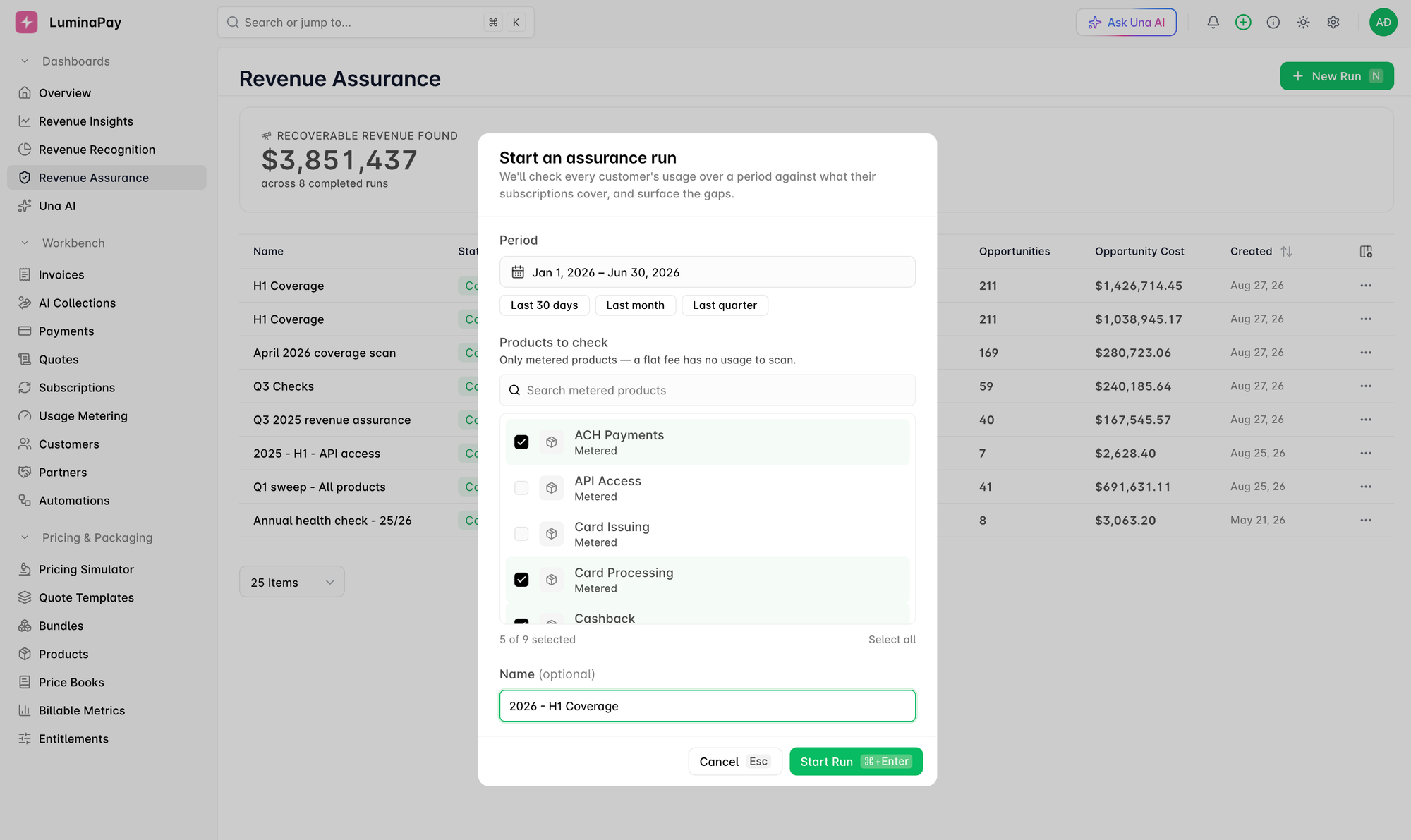
Open Revenue Assurance under Dashboards and choose “New Run.”
Name the run something you'll recognize in three months. For example, "2026 - H1 Coverage" beats "test 1".
Next, pick the period. A closed month or quarter is a good first scan as the data is settled and the finding is actionable.
Select the products to scan. Start with your highest-volume metered products, as that's where coverage gaps cost the most, for example, API calls.
Hit “Start Run” and you’re off to the races.
Duplicating a past run pre-fills its products and period, creating a recurring monthly sweep in two clicks.
2. Watch the scan progress and view your list
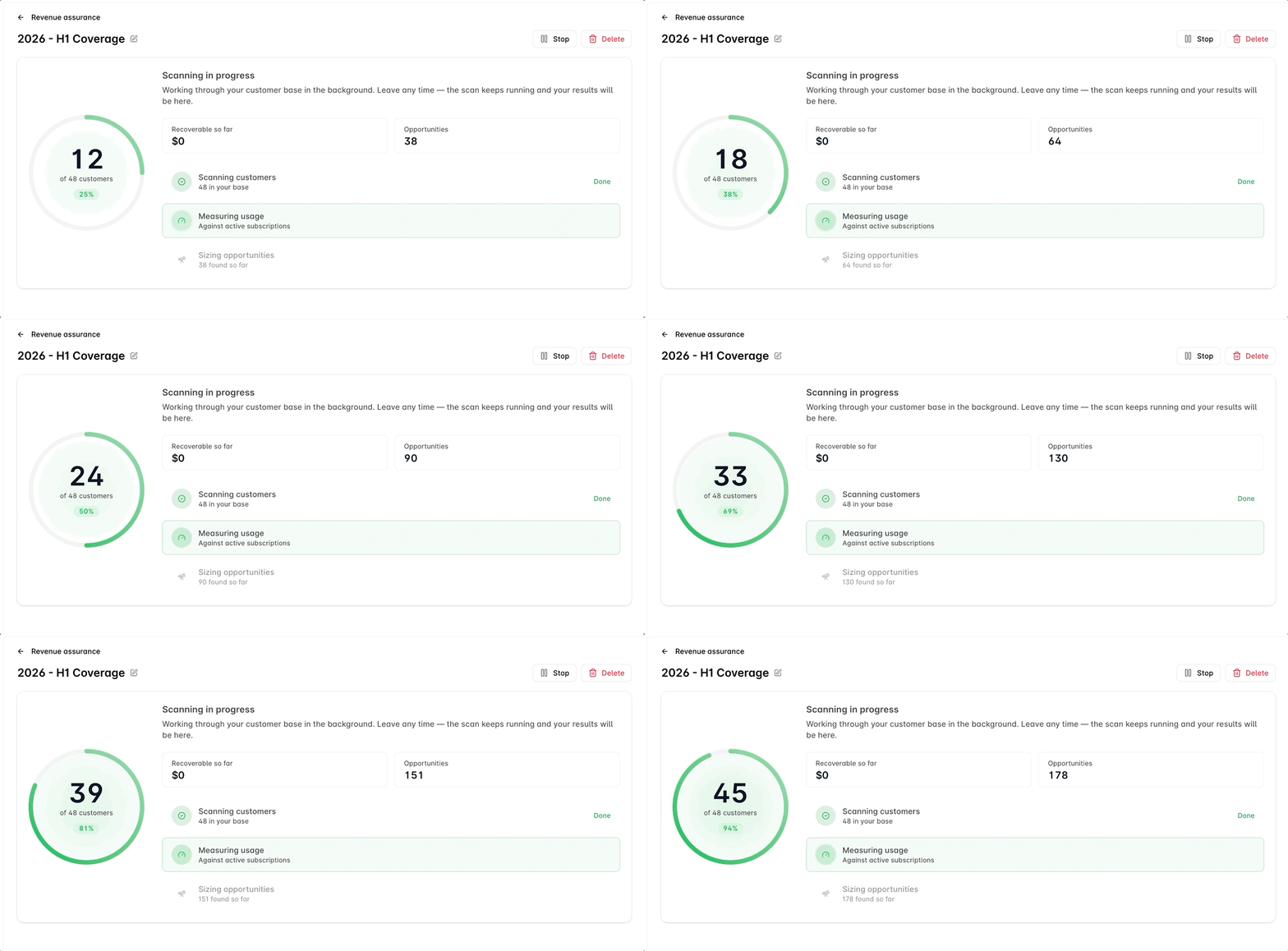
Depending on the size of your customer base and the number of products, it may take a few seconds or up to a couple of minutes to finish the scan.
When it completes, you’ll see the estimated recoverable revenue based on existing price along with a complete list of opportunities with grouping options:
- Category
- Customer
- Product
When grouping by product, you’ll have the option to edit the price manually (see step 3 below).
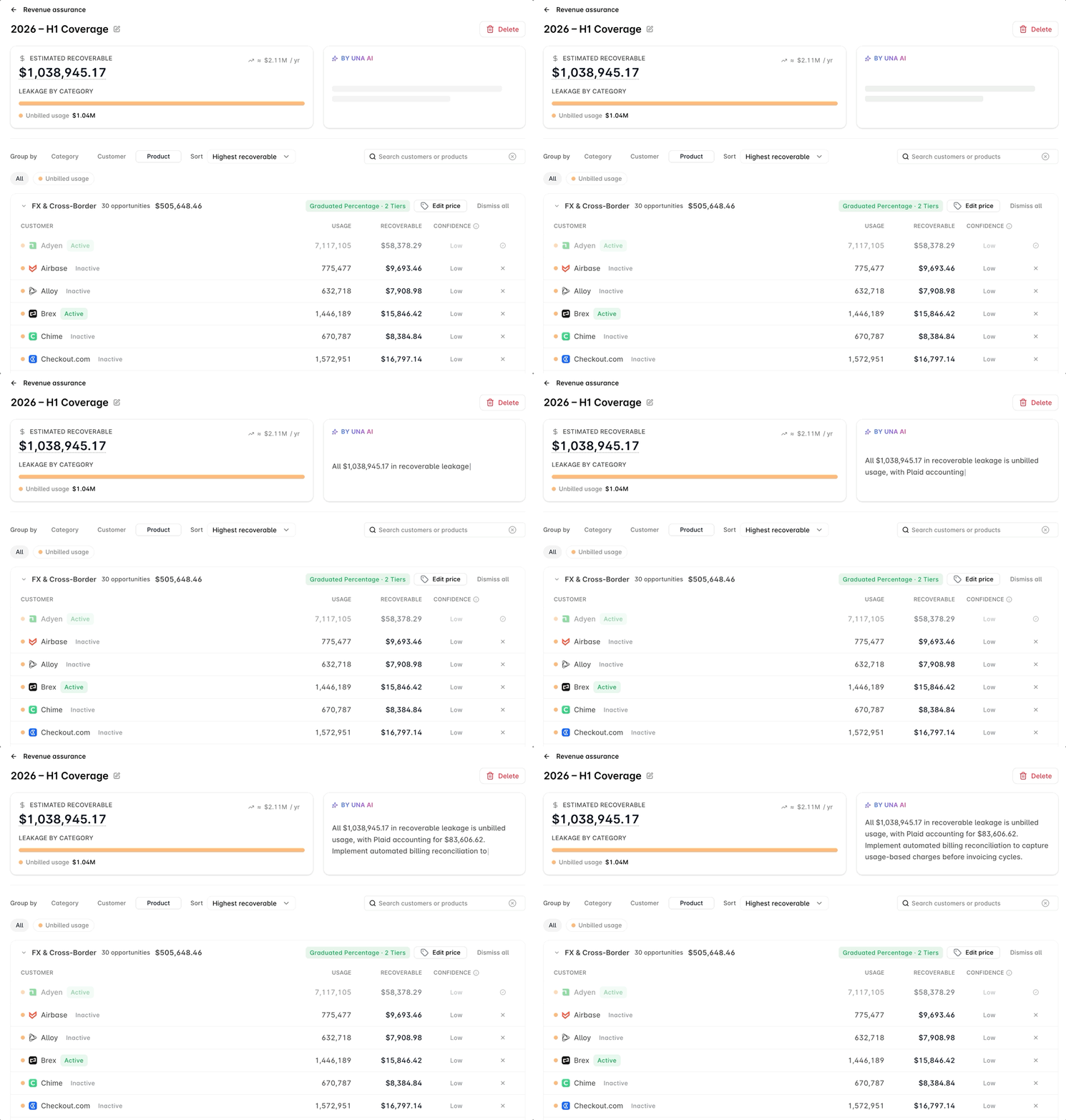
3. Optional: Edit pricing manually
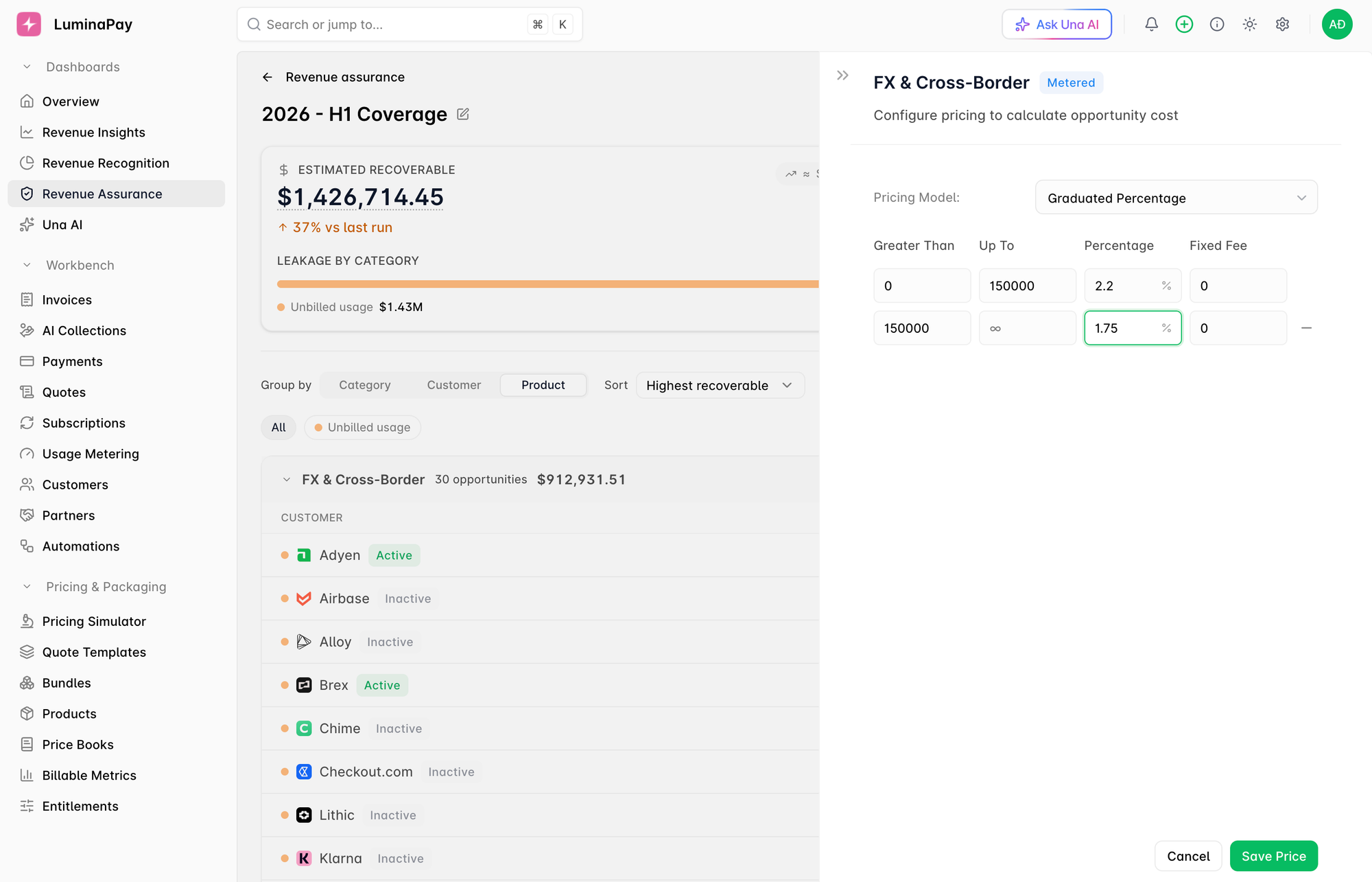
If you need to update the pricing, you can edit the price, by choosing the pricing model and setting the price accordingly. Make sure this aligns with your current pricing model.
Once done, hit “Save Price” to see the total recoverable revenue.
4. Review and prioritize recoverable revenue
Once you’ve set the price and the opportunity cost has been calculated, you’ll see the total amount of estimated recoverable revenue.
If you’re scanning across multiple products, you can also see leakage by category.
Here’s how you can filter the results.
- Group by:
- “Category” when you want to understand the reason the usage went unbilled. Every opportunity is classified when the run detects it, and grouping by category collects findings by that diagnosis rather than by who or what they touch.
- “Customer” when you want to know who to call. The accounts sort to the top by what they're worth.
- “Product” when you want to know what to fix. The same product appearing against many accounts is likely a packaging problem, not a series of phone calls.
- Sort by:
- “Highest opportunity” to close the biggest revenue gap first.
- “Most opportunities” if you’re looking for volume.
5. Choose a customer and create a subscription directly
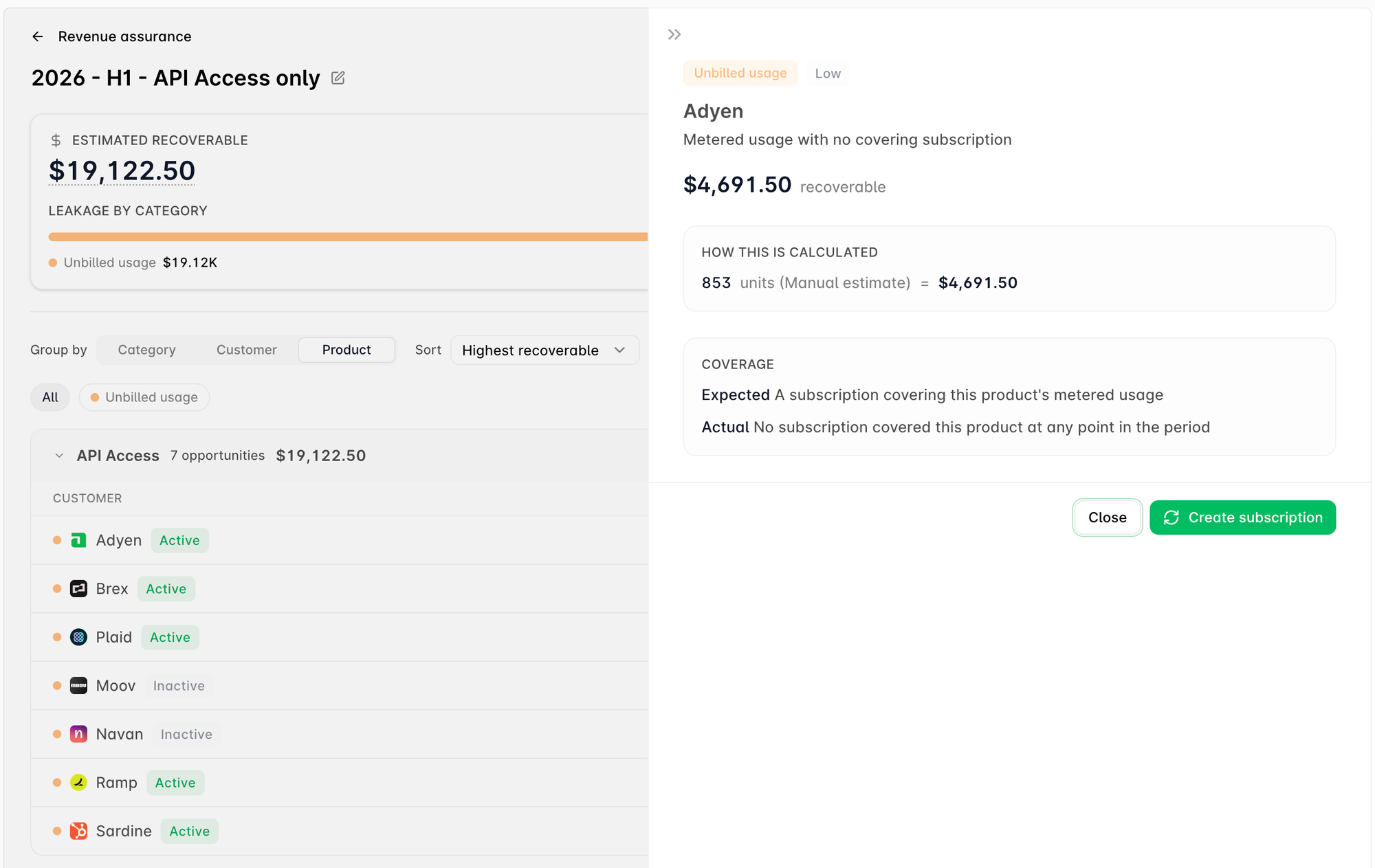
Click on any customer name and get the option to create a subscription that covers the relevant product’s metered usage.
6. Export and route to the correct person
Simply hit Export CSV to download the file and send it to the people who'll act on it, whether that’s a CSM or Billing Manager.
If you're already metering usage in Alguna, there is nothing to install, migrate, or integrate. The first scan takes a few minutes and usually pays for itself before you've finished reading it.