Broken or unreliable flows between your billing platform and NetSuite quickly turn into an operational burden. Manual, back-and-forth clarification and reconciliation work isn’t where teams should be spending their time.
That’s why we made sure there are no bottlenecks between Alguna and NetSuite.
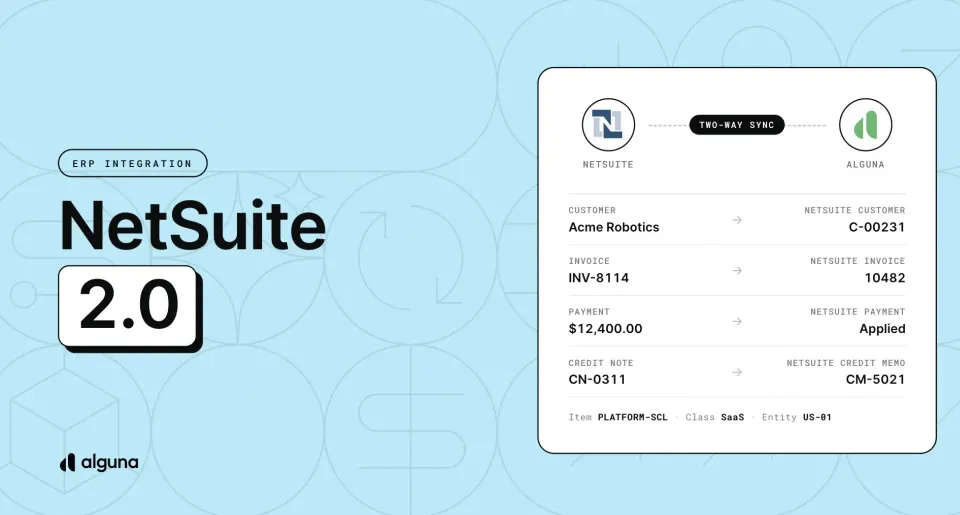
Every invoice you issue in Alguna now lands in NetSuite instantly, posted to the right item, class and subsidiary. Payments and credits applied in NetSuite flow back to Alguna in real-time, so both systems show the same balances and your month-end close starts from numbers that already agree.
NetSuite stays your accounting system of record. Alguna runs quoting, subscriptions, usage, invoicing and collections, and keeps NetSuite up to date as invoices are issued, credited and paid.
Everything happens in real time with no discrepancies between the systems.
If your finance team prefers to review entries before they post, journal exports give you the same data as files ready to import.
Here's what's new.
Invoices land in NetSuite the moment you issue them
When you issue an invoice in Alguna, it's posted to NetSuite as an invoice. This works the same for invoices you create in the dashboard, through the API, or on a subscription's schedule.
Credit notes post as credit memos against the original invoice, and the customer behind each invoice is created in NetSuite the first time it's needed.
Each invoice line is posted to the NetSuite item and class you choose for that product. If a product uses a different item depending on where the buyer is (for example, an EU item and a US item), Alguna picks the item from the invoice billing address.
- Your numbers, not a copy of them. The NetSuite invoice carries the Alguna invoice number as its document number, the invoice currency, the PO number, the due date and one line per Alguna line. Prices are posted as custom rates, so an item's list price never overrides what you billed.
- No duplicates. If an invoice with the same document number already exists in NetSuite (one keyed in by hand before you connected, for example), Alguna adopts it instead of creating a second one, as long as the customer, currency and total agree. The same goes for a customer with the same company name.
- Roll-up invoices stay readable. With roll-up billing, one payer gets a single invoice for several of their customers. In NetSuite, those lines stay grouped by customer, so the record reads the same as the Alguna invoice.
- US sales tax on one line. For US invoices, the whole tax total is carried on a single "US sales tax" line. Outside the US, NetSuite works out tax from the customer's country tax setup.
- The right books for each entity. Each Alguna legal entity maps to a NetSuite subsidiary, so multi-entity businesses post to the right books.
When an invoice changes in Alguna, the NetSuite record is updated to match. Once a payment or credit is applied in NetSuite, Alguna leaves that invoice alone so it never edits a record your team has already worked on.
See what got paid without leaving Alguna
Posting invoices only solves half the problem. If your customers pay against NetSuite, your Alguna invoices would stay "Issued" forever, and your collections team would keep chasing invoices that are already settled.
Alguna now checks NetSuite once a day for the invoices it posted and brings back what happened to them.
- An invoice paid in full in NetSuite is marked Paid in Alguna
- Every customer payment and credit memo applied in NetSuite is recorded against the Alguna invoice, with its amount and date
- Each credit memo applied in NetSuite becomes a credit note in Alguna, with a link back to the NetSuite record
This means no more recording payments in two places, and no more reminder emails going out for invoices your customer paid last week.
Prefer to review before it hits the ledger? Export journals instead
Some finance teams don't want anything posting to the general ledger without a review step. Others only have import access to NetSuite.
For both, Alguna can produce journal entry CSV files for NetSuite's Import Assistant, instead of posting invoices directly.
You choose your clearing, revenue and US tax accounts and an amortization template from your live NetSuite chart of accounts, and Alguna does the rest.
- See it before you run it. A preview shows how many invoices, credit notes and journal rows are waiting, broken down by legal entity
- Nothing exported twice. Each run only picks up invoices and applied credit notes that haven't been exported before
- Files NetSuite accepts. Files are split by legal entity, capped at 25,000 rows, and never split a journal entry across two files. Tax codes are referenced by NetSuite internal ID, and deferred lines carry their amortization schedule and service period
- Credit notes included. Applied credit notes get their own credit journal files, with debits and credits reversed
- Nothing dropped silently. Anything that can't become a balanced journal, such as a legal entity with no subsidiary or an inactive currency, goes into a separate issues file that names the document, the problem and the fix
Every run is kept in the Exports tab on the invoices page: who ran it, when, what it contained, and any issues. If an import fails or an invoice changes after export, you can re-export a single file, a whole run, or everything you've exported. Alguna lists the earlier journals you need to reverse in NetSuite first.
A connection that tells you when it needs attention
Our NetSuite integration now connects through NetSuite's certificate-based machine-to-machine authentication, set up in a step-by-step wizard.
It runs as a dedicated integration user rather than someone's own login, so the connection doesn't break when a person changes role or leaves.
- Certificate reminders. Certificates last two years, the maximum NetSuite allows. Alguna warns your admins 60, 30 and 14 days before expiry, and you can rotate the certificate from the integration card in a few minutes
- Plain-language sync issues. If something stops a sync (an unmapped product, a currency that isn't active in NetSuite, two NetSuite customers with the same name), Alguna opens a sync issue that names the invoice, the reason and what to change. Fix it and retry from the same page
- Clear next steps when access breaks. A missing permission shows up as a configuration issue, and rejected credentials as an authentication issue with a reconnect option, so you know whether to fix the NetSuite role or reconnect
Get started
The NetSuite integration is turned on per organization and the plan. To opt in, email [email protected] or message us in your shared Slack channel.
Once it's turned on:
- Go to Settings → Connections → Integrations and click Connect on the NetSuite tile. The wizard walks you and your NetSuite administrator through the certificate setup.
- Open Configure on the NetSuite card. On the Direct sync tab, map each legal entity to its NetSuite subsidiary. If you'd rather export journals, turn them on in the CSV exports tab instead. Each integration uses one or the other, so nothing gets posted twice.
- Send us your product mapping (the NetSuite item and class for each product), and we'll configure it and turn on invoice sync.
- Issue a test invoice and check it in NetSuite.
Moving your billing off NetSuite? You can also import existing NetSuite invoices into Alguna from the import button on the invoices page. Paid invoices come in with their payments, and imported invoices are never posted back to NetSuite.
For the full setup, including the NetSuite role, permissions and integration record your administrator needs to create, read the NetSuite integration guide.