Connect Claude, Cursor, ChatGPT, Gemini, or any other MCP-compatible AI assistant directly to your Alguna account and turn billing questions into instant answers. No code, no exports, no context-switching.
Most billing questions are small. Checking which plan a customer is on, working out when a subscription renews, confirming whether last month's invoice actually went out. Each one usually means the same routine: open Alguna, click into the right customer, find the right tab, copy the number into whatever you're actually working on.
None of that is hard. It's just additional steps that add up over a day of billing questions that come from email, Slack, sales, and finance teams.
Today we're launching Alguna’s MCP server 2.0, so you can skip all those steps. Connect your AI assistant once, and it can read and act on your Alguna data directly.
What is MCP, and why does it matter?
Think of it as a common language that lets Claude, Cursor, or ChatGPT talk directly to the systems you already use, instead of you relaying information back and forth by hand.
Alguna's MCP server puts your customer, subscription, pricing, invoice, and usage data on the other end of that connection. Once it's set up, your AI assistant can look things up in Alguna and, with your approval, take action.
All this happens through plain-language requests instead of clicks through the dashboard.
What you can do with Alguna's MCP
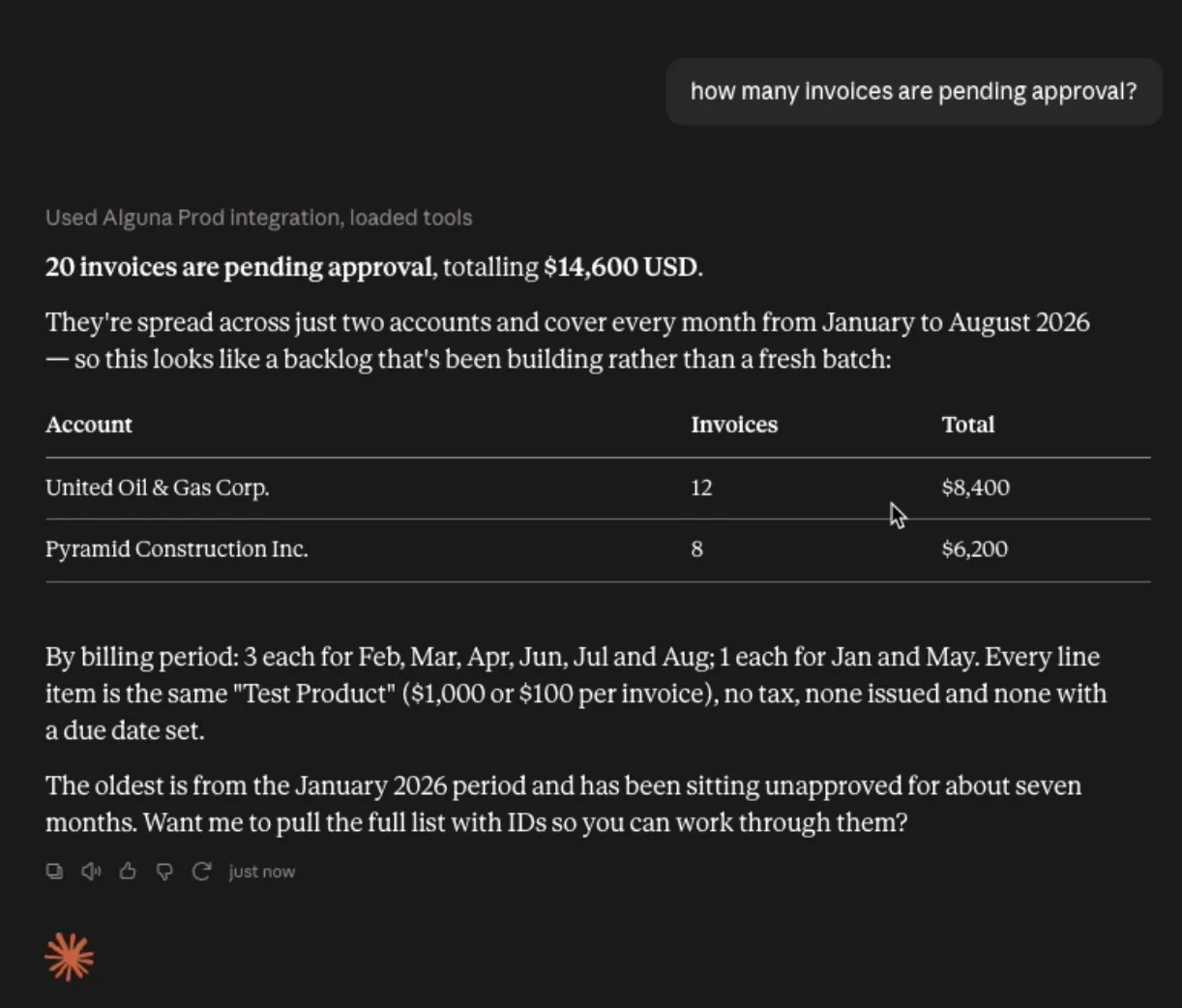
In this version, you can do the following:
- Look up customers and subscriptions. "What plan is Acme Corp on, and when does it renew?"
- Dig into products and pricing. "Which price bundles include the Pro plan, and what does it cost annually?"
- Check invoices. "Has Northwind's last invoice been paid, and what was on it?"
- See usage. "How many API calls has Acme logged this month?"
- Create invoices and subscriptions. "Draft an invoice for Northwind, implementation services, $5,000, due in 30 days."
What you can't do (yet)
Quotes, credit notes, refunds, and AR and revenue reporting aren't part of it.
Our MCP server is under active development, and what it can do today isn't the ceiling.
Getting connected
The recommended path is OAuth, so you never have to handle an API key:
Step 1:
In the Alguna dashboard, go to Settings > Connections > MCP and click Connect a client.
This shows your server URL: https://api.alguna.io/mcp.
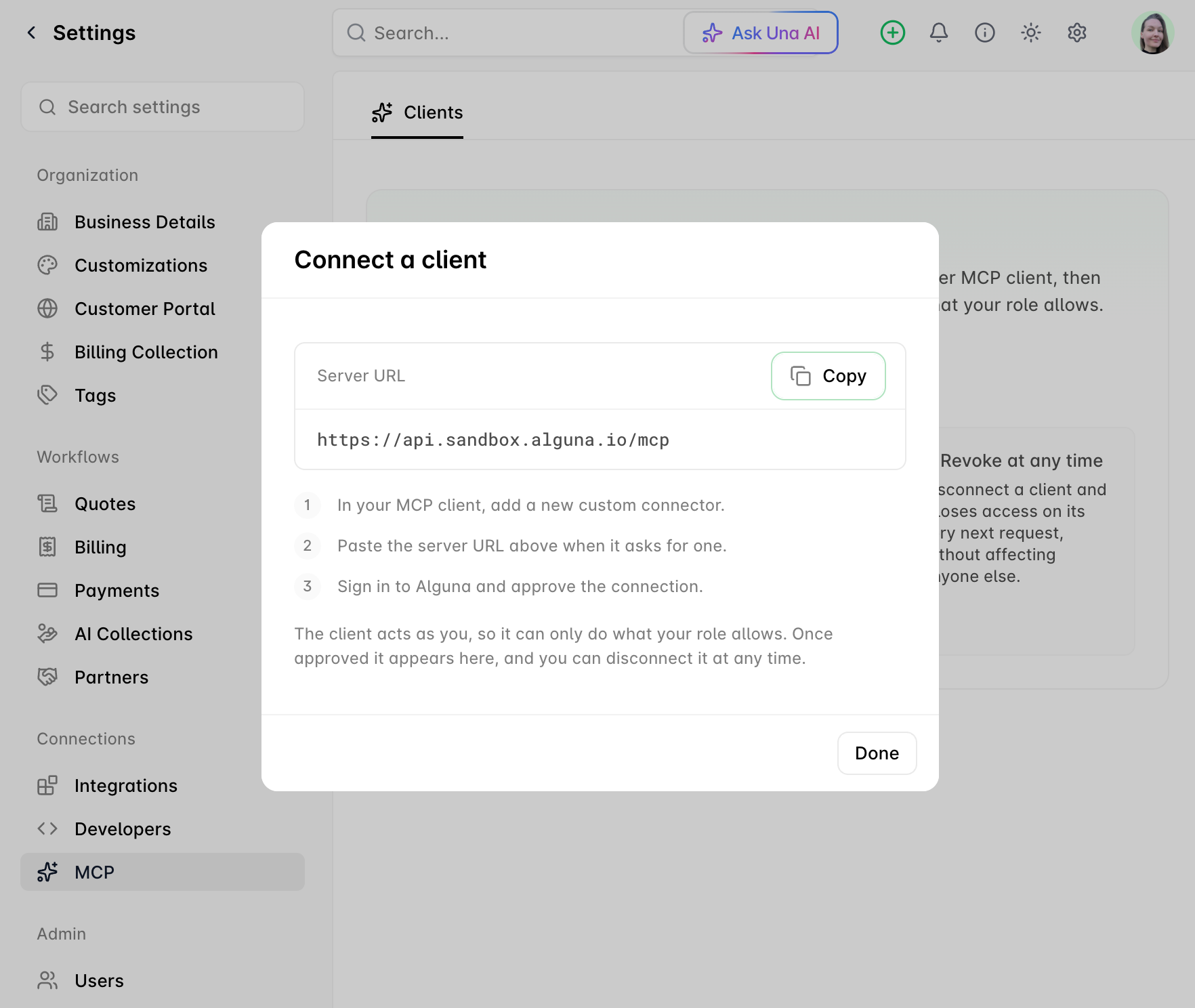
Step 2:
In your AI client (Claude, Gemini, Cursor, ChatGPT, or another MCP client that supports remote servers), add a new custom connector and paste in that URL.
In the example below, we're connecting Alguna's MCP to Claude.
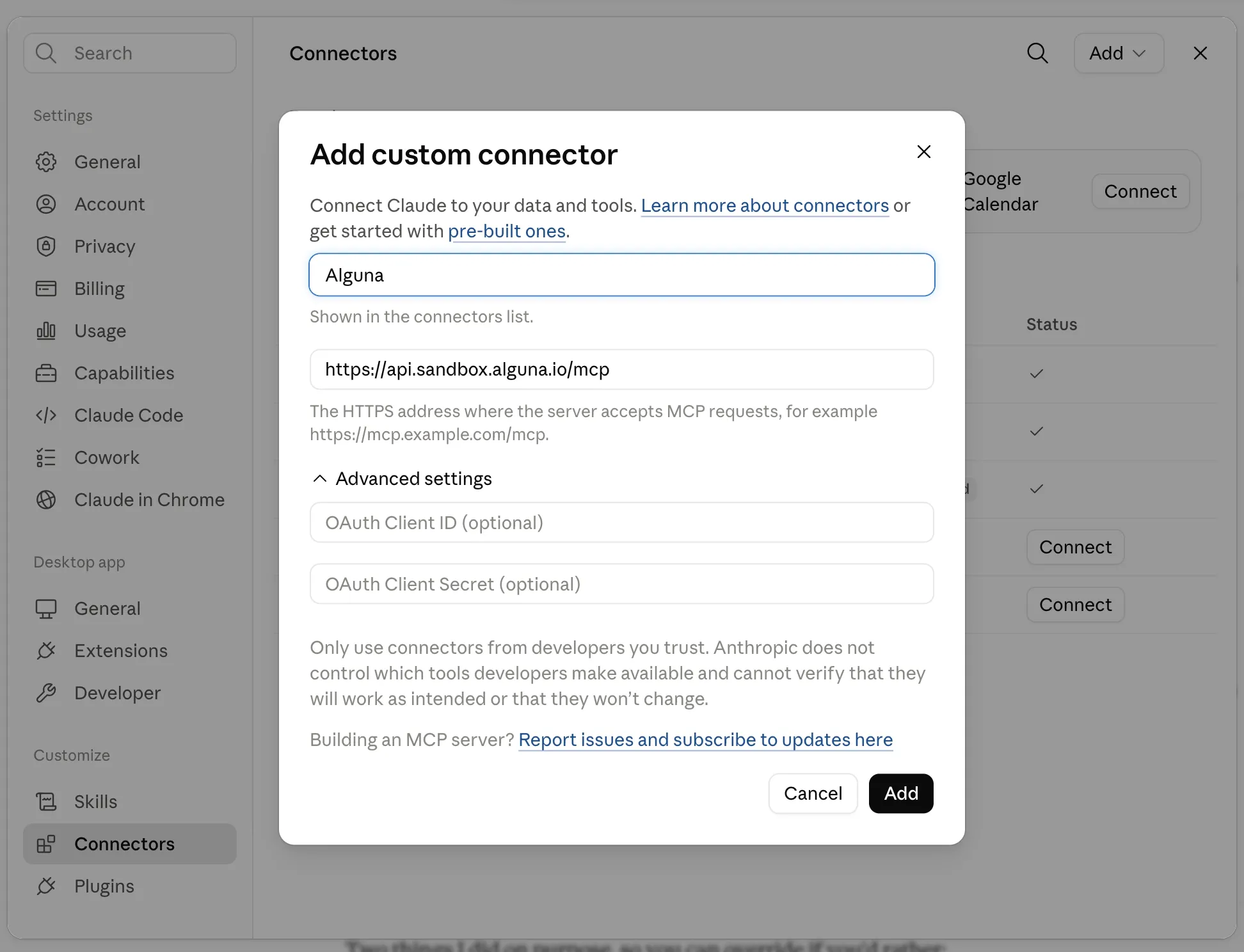
Step 3:
Sign in and approve the connection. It'll show up under Settings > Connections > MCP, where you can revoke it any time.
If your client doesn't yet support OAuth-based remote connectors, you can connect with an API key instead, using mcp-remote as a bridge.
Guardrails and how we suggest using them
Your assistant is doing real things to real billing data. Creating a subscription creates a subscription; issuing an invoice issues an invoice.
These actions can't be automatically undone, so we've built the connection to be tightly bounded, and we'd recommend a deliberate way of working on top of that.
What's built in
- It can only do what you can do. A connection acts with your Alguna permissions, not a blanket set of admin rights. Actions your role doesn't cover aren't just blocked, your assistant never sees them offered. Change someone's role and their assistant's abilities change with it, on the very next request.
- Every connection requires you to sign in and approve it. on a screen that names the application asking and the organisation it's asking for. There's no automatic trust for any client, including our own.
What we recommend
- Leave your assistant's approval prompts on. Most clients will ask before running an action; that prompt is the moment to read what's about to happen. It's the same review you'd give a change before hitting save.
- Start by reading. Use "show me", "find", "summarise" to get a feel for how your assistant handles your data and your naming before you let it write anything.
- Let it draft; you approve. Alguna already separates preparing work from committing it, subscription versions are published, invoices are approved and issued. Point your assistant at the drafting half and keep the commit for a person. You get the speed without handing over the decision.
- Be specific where money is involved. IDs beat names. Before approving a write, check the obvious things: right account, right amount, right currency, right dates.
- Match the role to the job. The connection inherits whatever role you hold, so the tidiest setup is a role scoped to the work you actually want automated, rather than connecting from your most powerful account out of convenience.
- Don't leave it running unattended. This is built for a person working with an assistant, not for autonomous loops against production billing.
What's next?
The toolset is deliberately small as we'll widen it based on what people actually need. The gaps named above are the obvious candidates, and based on your feedback we'll prioritize what's next.
Questions or feedback? Reach us on Slack if you're an existing customer, or email [email protected]. Tell us what worked, what your assistant got confused by, and what you wish it could do, we're actively shaping this based on what you tell us.