The biggest upgrade to Approval Workflows since launch: sign-off in Slack, approvals mapped to your team structure, and a reason attached to every request for faster decision-making.
Every revenue team has a discount policy. Almost none of them have a way to enforce it. The rule lives in a slide from last year's kickoff, and the deal that closed at 42% off surfaces a quarter later, in a margin review, when there's nothing you can do about it.
The first version of Approval Workflows closed most of that gap. You could write rules about discounts and products, put a group of approvers behind each one, and no deal that broke a rule reached a customer until those people had signed off. Teams have been running on it since last year.
But a few clear themes came up. Approvers wanted to act without logging in, larger teams wanted each rep's deals to reach their own manager (not a shared list), and approvers wanted more context on why e.g. a specific discount was asked for.
This update is about those three things. Plus rules that watch your contract language, not only your pricing.
What's new since the first version?
- Approve from Slack: A decision without opening the dashboard.
- Team mapping: Sign-off follows your team structure, not one shared list.
- Required justifications: The reason comes with the request.
- Clause-based rules: Catch edits to your standard legal terms.
Learn more below or head to our docs.
How Alguna's Approval Workflows work
Our Approval Workflows exist to achieve one thing: Stop a deal from going out until the right person has looked at it.
Create the ruleset
A ruleset is a folder which holds related rules so your discount policy and your legal policy stay separate. Add as many rules as needed to enforce e.g. your discount policy.
Add conditions
This is the trigger. It says what makes a deal worth a second look. For example, a discount above 20%, a particular product on the quote, someone editing your standard contract terms.
Assign the approval group
This is who gets notified. A rule points at a single person or a group of people, and you decide how many of them have to say yes: any one of them, all of them, or a set number.
Both are set in plain language, without formulas and scripting.
Let's take a closer look at how it works and how to create your first ruleset.
Create a new ruleset and add your first rule
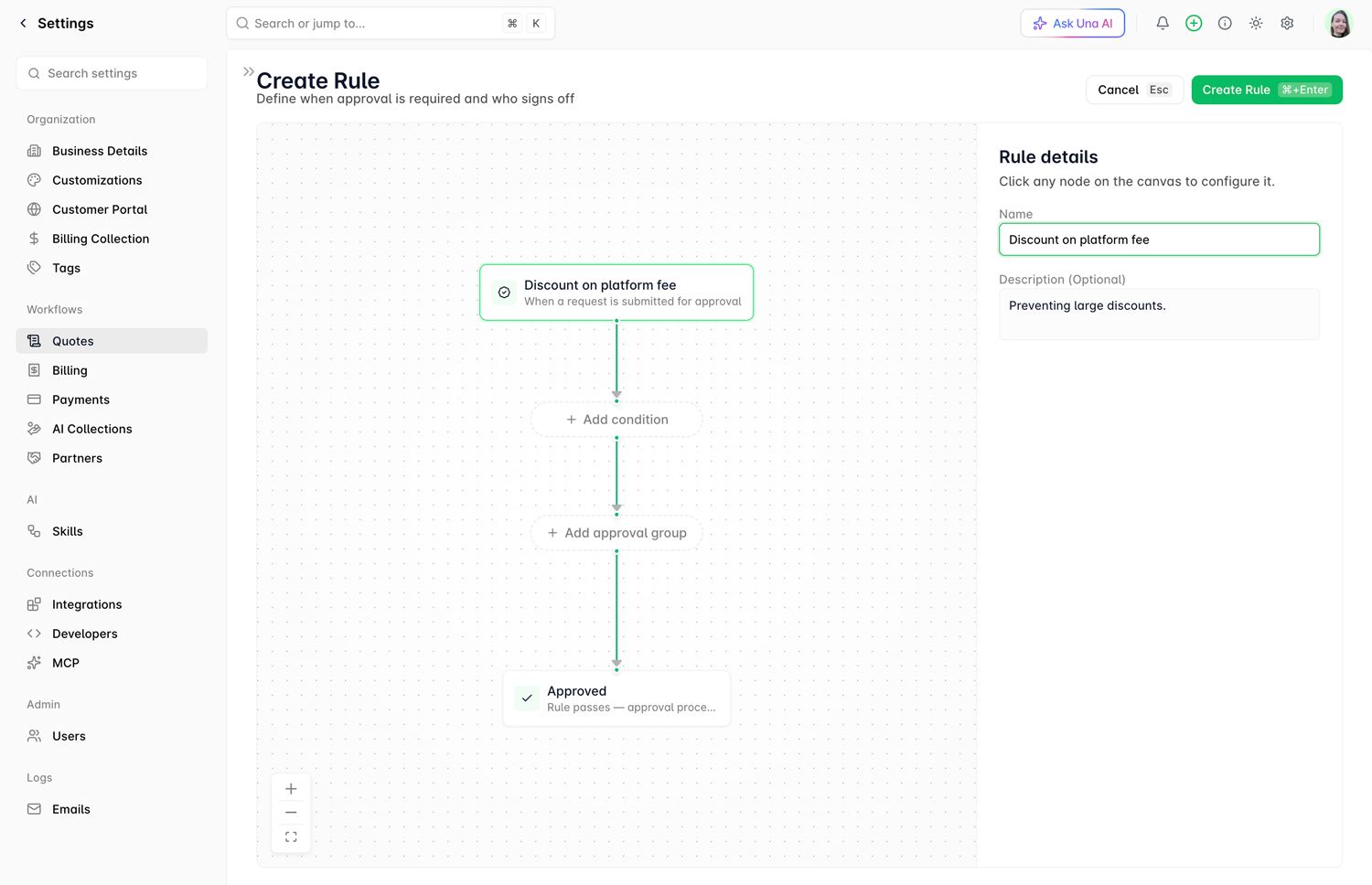
Name your rulesets appropriately, so it's clear what type of rules each ruleset will hold.
For example:
- Name: What the policy is, e.g. "Discount policy"
- Description (optional): Worth filling in if anyone else will maintain this
- Require justification: Turn this on and reps must type a reason before they can submit a deal this ruleset catches. Recommended: approvers deciding without context is the top complaint about approval processes generally.
Once the ruleset has been setup, add a rule and give it a name that reads like a policy.
For example, "High discount approval" beats "Rule 1." Approvers will see this name in their request, so make sure it's descriptive and actionable.
Add conditions
Today a rule can watch for five things:
- A standard clause that someone has modified
- Every deal of a given kind, always needs sign-off.
- A specific product appearing on a deal
- Any product discounted past a threshold
- Specific product discounted past its threshold
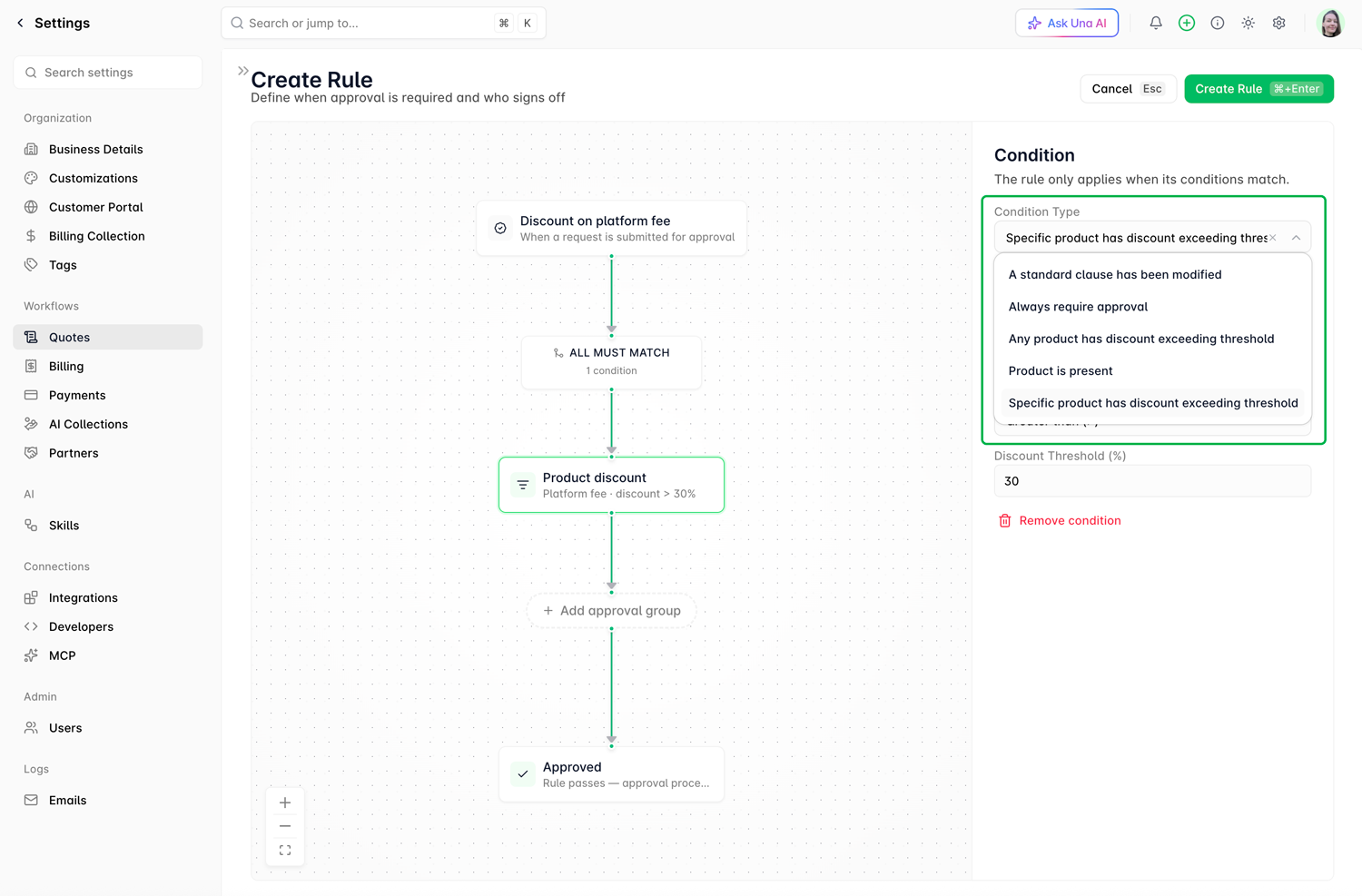
Note: Conditions can be combined. All of them must be true, or any one of them, whichever the policy calls for.
Rules are grouped into rulesets, so your discount policy and your legal policy stay separate and either can be switched off without disturbing the other.
Decide who approves, and how many approvers you need
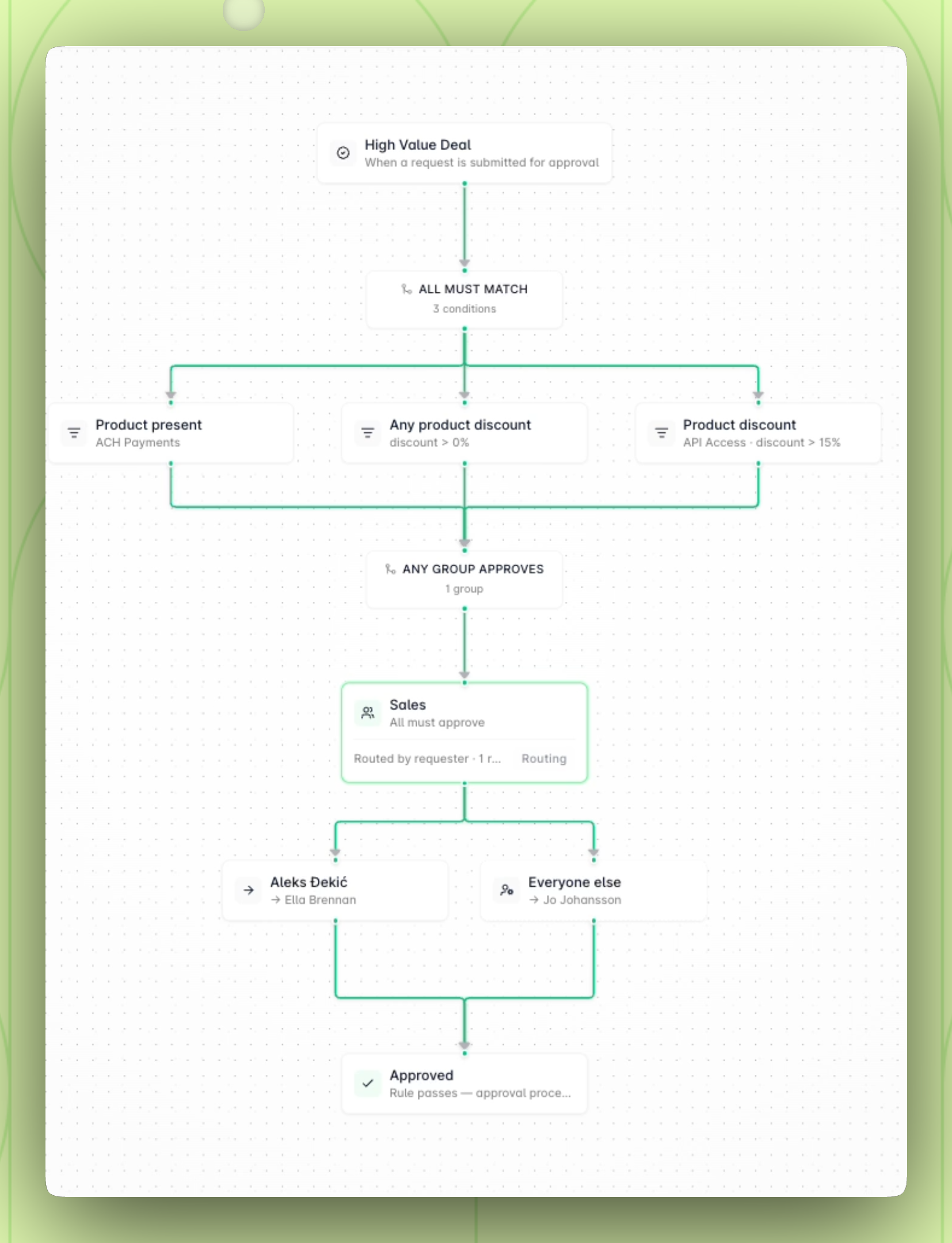
Each group carries its own threshold, so a light-touch review and a full committee can sit on the same deal.
Any: One person is enough. Best for routine reviews where speed matters more than consensus.
All: Everyone in the group has to agree. For the decisions you don't want made alone.
Minimum: Pick a number of approvers needed. Whether it's two or five, the deal moves once you reach it.
Approvers can be a fixed list, or they can follow the rep. Map your sellers to their managers once per group.
If you don't name anyone, everyone with the Approver role can step in.
Approve without leaving Slack
The fastest approval is the one that doesn't require opening another tab.
Connect Slack and approvers get the request as a direct message, with the deal, the rule it tripped, and the reason the rep gave, and three buttons:
- Approve
- Reject
- Open the quote
Rejecting asks for a reason before it will go through.
Note: Approvers get one message per deal, not one per rule. If a deal trips three rules that all route to the same VP, they get a single DM and one click on Approve clears all three.
What the rep sees
Alguna checks the deal against your rules while it's still being built, so a rep knows approval is coming before they submit, not after they've promised the customer a date.
1. Building: The quote is a draft. Alguna flags that it will need approval, and which rules it trips.
2. Submitted: The rep sends it for approval. Where your policy requires it, they have to write a short justification first.
3. In review: The deal locks and each approver gets their request. The rep can see which rules have cleared, and can pull the deal back to draft at any point.
4. Approved: The deal does exactly what the rep chose when submitting: activate straight away, or go out for e-signature.
5. Rejected: A deal is rejected once a group can no longer reach the approvals it needs. This may be a single "no" or several, depending on how you set the group up. The remaining requests are withdrawn so nobody reviews a dead deal, and the rep gets it back with the reason to revise and resubmit.
The details that save the day
Ask for the reasoning. Any ruleset can require a justification before a deal can be submitted, whenever it's a threshold or an edited clause that triggered the review, the rep has to say why. Approvers see it in the request, so they're deciding with context instead of guessing at intent.
Change a rule without chaos. Tighten a threshold mid-quarter and Alguna will re-check every deal already in flight. Approvals already given are carried over, Slack messages update themselves, and nobody gets asked the same question twice.
Get started with Approval Workflows today
Approval Workflows are available now in Alguna. An admin can have a first rule running in a few minutes.
All you need to do is go to:
Settings > Workflows > Quotes > Approvals > New Ruleset
Start with the single rule that would have caught your worst deal of last year. One threshold, one group of approvers, Slack connected.
One thing to do first: give the people who will be approving the Approver role. That's what makes them selectable when you build a group, and it's the most common reason a brand-new rule refuses to switch on: Alguna won't enable a rule that falls back to a role nobody holds.